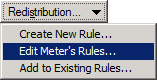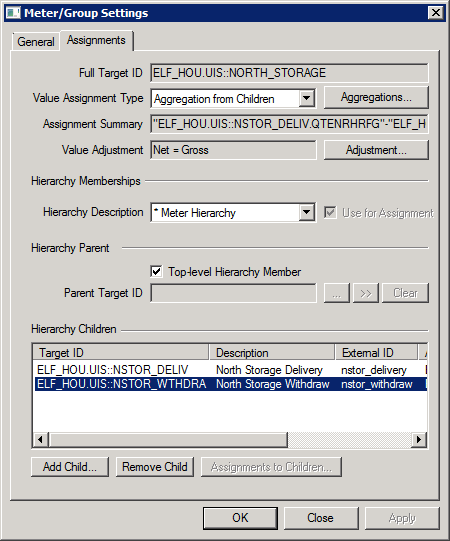
Use the Meter/Group Settings - Assignments page to configure the following settings for the selected meter or meter group:
To Configure Meter Assignment Settings
The properties on the Meter/Group Settings dialog box, Assignments page are described below.
| Parameter | Description | ||||||||||||||||
|---|---|---|---|---|---|---|---|---|---|---|---|---|---|---|---|---|---|
|
Full Target ID |
Specifies the ID of the current target meter or meter group. |
||||||||||||||||
|
Value Assignment Type |
Any node (meter or meter group) may only get its values from one source. This setting specifies the Value Assignment Type for the current target meter or meter group. Value Assignment defines the different ways in which a meter or meter group receives its forecasted values. Assignment options include the following and are described below:
Select the appropriate Value Assignment Type for the target and click the adjacent button to configure the rule. The facility attribute used to store the Value Assignment Type value is configured on the System Settings page. See Configuring Facility Attribute Settings for more information.
|
||||||||||||||||
|
Assignment Summary |
Specifies a summary of the configured Assignment Type rule(s) for the current meter or meter group. |
||||||||||||||||
|
Value Adjustment |
Specifies the energy load adjustment setting that has been defined for this meter or meter group. An adjustment will occur whenever a meter or meter group’s gross forecast value is set by one of the defined Value Assignment Types. If no value adjustments are currently active, the default action will be to copy the gross forecast to the net forecast value. Click Adjustment to configure an Adjustment Rule for the current meter or meter group. See Configuring Value Adjustment for more information. |
| Parameter | Description |
|---|---|
|
Hierarchy Description |
Specifies a list of possible Hierarchy Descriptions that the selected meter or meter group is eligible to join. A target meter or meter group can be a member of up to ten distinct hierarchies. Note: A (no parent) note will display to the right of the selected Hierarchy Description if it has no parent. Each Hierarchy Description belongs to a Meter Hierarchy Parent facility attribute that stores the information from where a hierarchy can be built. The facility attribute used to store the Meter Hierarchy Parent value is configured on the System Settings page. See Configuring Facility Attribute Settings for more information. |
|
Use for Assignment |
Click to indicate that the selected Meter Hierarchy Parent is to be used for value assignment. Note: An asterisk (*) will display to the left of the selected Hierarchy Parent to indicate from which parent this meter or meter groups is getting its value assignment. The facility attribute used to store which Meter Hierarchy Parent will be used for Value Assignment is configured on the System Settings page. See Configuring Facility Attribute Settings for more information. |
| Parameter | Description |
|---|---|
|
Top-level Hierarchy Member |
Click to indicate that this meter or meter group has no parent, that is, this facility is the top-level node (root) in the specified hierarchy. Note: For each meter or meter group, you must indicate whether it is at the top of a hierarchy, or set a Parent in the next field. Hierarchies can have multiple top-level members. |
|
Parent Target ID |
Specifies the facility attribute that will store the resolved CygNet Facility Tag referenced by the external Group ID value provided in the import file or the configured CygNet Facility Tag entered manually for this meter or meter group. The specific Meter Hierarchy Parent facility attribute used to store this value is configured on the System Settings page. See Configuring Facility Attribute Settings. Click … to select a valid Parent Target ID. |

|
Click >> to see the Assignments settings for the Parent Target in read-only mode. |
|
Clear |
Click to remove the Parent Target ID for this meter or meter group. Note: You cannot remove a Parent Target ID if the meter or meter group is used in its parent aggregation rule. |
| Parameter | Description |
|---|---|
|
Hierarchy Children |
Specifies a list of the child meters or meter groups that belong to the currently selected meter group. Any one child can be a member of more than one hierarchy. For each child the list displays the Target ID, Description, External ID, Assignment Type, and Assignment Hierarchy. |
|
Add Child |
Click Add Child to select a Facility ID to add to the hierarchy. |
|
Remove Child |
Clink Remove Child to remove a selected Facility ID from the hierarchy. |
|
Assignments to Children |
Click Assignments to Children to view the Assignment Rules for the children of the selected target parent. See Configuring Assignment From Parent for more information. If none of the children get forecast values from a parent this button is disabled. |
If the parent and child relationships and their associated rules are misconfigured in any way, errors will be displayed at the bottom of the dialog box. A single error will display directly on the dialog box; if two or more configuration errors exist an All Errors button will display. Errors must be resolved before OK is enabled.
More:
 Configuring Historical Value Rollup
Configuring Assignment From Parent
Configuring Aggregation From Children
Configuring Expression Redistribution
Configuring Balancing Redistribution

|
|
|